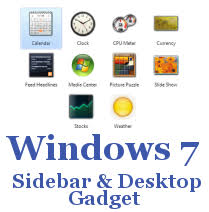
Best desktop Gadgets for Windows 7 again

0

With Windows Live ‘What’s New’ gadget, you can get all the latest updates from Windows Live and other web activities of your network.

Windows Live ‘What’s New’ GadgetWindows Live 'What's New' Gadget


The Windows Live What’s New Sidebar Gadget (Beta) is a Vista gadget that displays your Windows Live “What’s New” feed on your desktop. You can receive real-time updates on what your friends are doing across multiple social networks right from your desktop. Be the first to know when your friends upload photos, add new friends to their networks, change their status messages and post comments. It’s quick and easy to add the Windows Live What’s New Sidebar Gadget (Beta).


Surely Windows Live team could have done a better job on the looks. This gadget isn’t pretty but it does the job well, displaying all the feed items including thumbnail images from Windows Live Home. Download it from Windows Live Gallery or download the complete Gadgets Pack here.


Simple Search BarSimple Search Bar GadgetAs the name implies, this search gadget is truly the most simple & clean search gadget out there which lets you search the web using Google, Yahoo and Live Search. Download it from Windows Live Gallery or download the complete Gadgets Pack here.


Download Top 5 Must-have Sidebar Gadgets Pack for Windows 7


Learn More Windows® 7 Inside Out

copyright@Maj'sBlog'09


[Read More...]

Best desktop Gadgets for Windows 7

1

I have been fond of using gadgets ever since their inception in Windows Vista. With the right gadgets, you can get things done quickly and easily. Unfortunately the development of quality Gadgets has been real slow.

Microsoft is to be blamed for this. The story would have been much different had Microsoft added support for Gadgets development in Visual Studio with a drag-and-drop interface. Now since there isn’t any free quality tool out there for Gadgets development, it is very difficult to find quality gadgets from third parties. Adding insult to injury, Windows 7 Beta includes only one new gadget which is for Media Center. All other gadgets included in Windows 7 are from Windows Vista’s era.

Without going into any further delays, here is my pick for the top 5 must-have Gadgets for Windows 7. Of coarse I use Gadgets other than the ones I have listed below but they are too obvious and common so I haven’t included them in my list:

Twadget (The Twitter Gadget)

Twadget (The Twitter Gadget)I’ve become a regular user of Twitter over the last couple of months, both on the desktop and on the iPhone. Today I’ve discovered Twadget which looks like another great option for Windows (Vista & 7 only) users. I simply love this gadget. Twadget lets you do basic twitter tasks like sending and viewing all the tweets from your friends right from your desktop. If you’re one of those who use Twitter regularly, Twadget is for you! You can download it from here or download the complete Gadgets Pack here.


Remote Desktop GadgetRemote Desktop Gadget


Remote Desktop Gadget enables Windows users to remotely connect to other computers in their network right from the privilege of their desktop. It uses Remote Desktop Connection client on Windows to achieve remote desktop computing. It is simple and acts as a great extension to Microsoft Remote Desktop Connection client. Click here to download it.


Blue Calendar Gadget for Windows 7


Blue Calendar Gadget for Windows 7


“rapha2” over at DeviantArt has modified the original Microsoft calendar gadget to make it blue in color. This new blue calendar gadget matches the cool bluish-wavy look of Windows 7. This gadget can be downloaded from here or you can download the complete Gadgets Pack here.


Learn More Windows® 7 Inside Out

copyright@Maj'sBlog'09


[Read More...]

Microsoft Security Essentials in 7

0

Windows 7 may be brand new, but that doesn't mean you can't find free or cheap tools to tweak its settings, supplement its features, or smooth an upgrade from XP or Vista. We've compiled a list of ten valuable software tools--many of them free--that can make your Win 7 experience a lot more rewarding.

Like its predecessors, Windows 7 doesn't provide built-in protection against malware such as viruses and spyware. (It does have a firewall, however.) You could pay McAfee or Symantec for this service, but why bother with their protection racket when Redmond's service does the same thing for free? Microsoft Security Essentials provides solid protection for home PCs, and it's free. If you prefer third-party security, check out AVG Anti-Virus Free Edition instead.

Find other Norton Antivirus 2010 1-User/3PC


copyright@Maj'sBlog'09


[Read More...]

Windows 7 Tips and Tricks - 2

0

Next are more tips to help you know your windows 7 operating system. its operating system bring some new thing to help your work easily.


Burn Images
We all had trouble with image burning in Windows, because it couldn’t do it itself, a standalone software being needed.
With Windows 7 this will not be a problem anymore. Its default image burning on windows 7.
All you have to do is double-click the ISO image and burn it on the CD or DVD that’s inserted in the drive.


Display Empty Removable Drives
Windows 7 will not show empty drives by default, so if you connect an empty drive to your PC, don’t worry, just go to Tools -> Folder Options -> View and uncheck “Hide empty drives in the computer folder”.

This doesn’t seem like a good idea and it should not be default setting, because it will be hard for inexperienced users to figure it out. I bet a lot of users will return their newly bought drive thinking it’s broken.

Preview Photos In Windows Explorer
While in Windows Explorer, Press ALT + P and a preview should appear on the right.

Desktop Magnifier
Press the Windows Key and the Plus Key to zoom in or Windows Key and the Minus Key to zoom out. You can zoom anywhere on the desktop and you can even configure your magnifier.
You can choose to invert colors, follow the mouse pointer, follow the keyboard focus, or the text insertion point.

Minimize Everything Except The Current Window
Press the Windows Key + Home Key.

Troubleshoot Power Management
Windows 7 can tell you how much power your system uses or provide detailed information about the power usage and issues caused by each application and device.
This way you can optimize the way your battery is used, making It last longer.
Press the Windows Key and type “POWERCFG –ENERGY –OUTPUT ”, and it will create a file called energy-report.html in the folder specified by you, after observing your PC for 60 seconds.

If you don’t have any idea try these POWERCFG –ENERGY –OUTPUT D:\energyreport.html then see the result after 60 seconds observing on your path destination.

Learn More Windows® 7 Inside Out


copyright@Maj'sBlog'09


Check ketersediaan nama kamu sebagai nama domain!!


[Read More...]

Others

Links Galery Other
Maj'sBlog
get the code

Red Carpet : BolaSinema
Rohman Sudiro
TopicKhamsionk
Iyandri
David
Deskapahendri
HackTheSlack
MyCuteLingeries
Ngadsens
Frizzy
omSanjaya
marcel
pinginbelajar
jepangsong
thobingsunarya
ripmaggots
rumahislami
neocomp4
arwi-cigo
nearie.web.id
aveef
sakurasays
You ??
www.flickr.com
This is a Flickr badge showing public photos and videos from majendra. Make your own badge here.